
Organize workspaces with categories
Sort your Herdr workspaces into Work, Personal, or anything else, then show one group at a time.
A busy host can hold a dozen workspaces. Categories let you group them by what they belong to, so a glance at the Herd shows only the agents you care about right now. They are yours to name, and they live only on your phone.
How categories work
- One category per workspace. A workspace is in one category or in none. The ones in none show as Uncategorized.
- Names are shared across hosts. Make "Work" once and it is there on every host you pair, so it means the same thing on your laptop and your Mac mini.
- Assignments are per host. Which workspaces are in "Work" is remembered separately for each host. They survive a Herdr restart, because Lochan keys them to the workspace's id, not its name.
- Nothing is sent to the host. Herdr never sees your categories. Your desktop keeps working exactly as before.
Set them up
-
Put a workspace in a category
Switch to Workspaces view from the ⋯ menu. Long-press a workspace, open Category, and pick one. The first time, pick New Category…: it creates the category and files the workspace in one step. Typing a name that already exists reuses that category.
Inside a workspace, the ⋯ menu has the same Category submenu. Pick None to take a workspace back out.
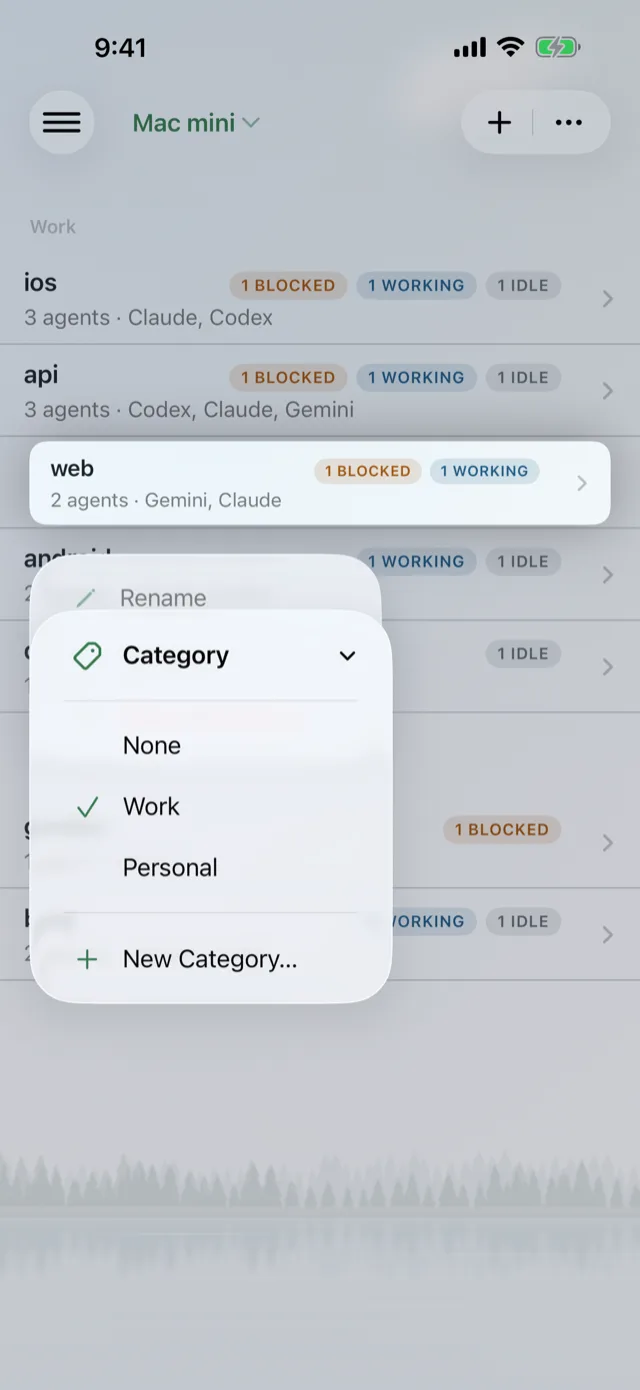
Long-press, then Category. 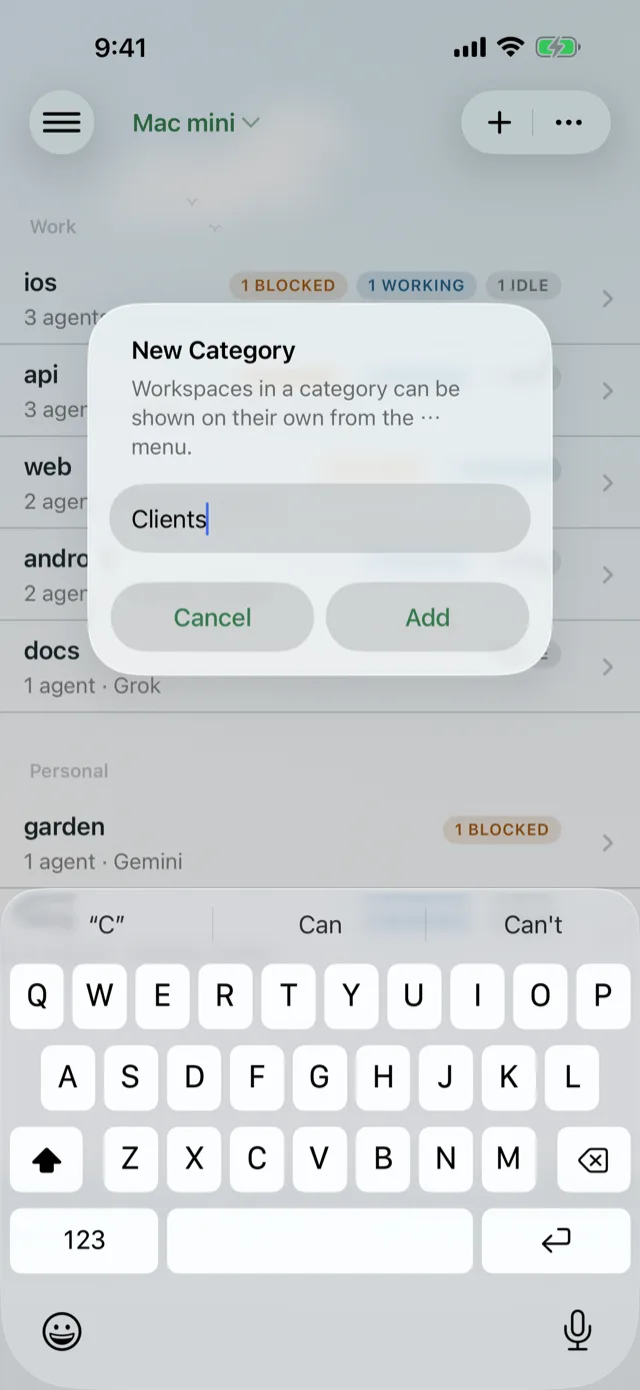
New Category… names it and files the workspace. -
Show one category
Once you have a category, the Herd's ⋯ menu gets a Category section: All, then each of yours. Pick one and both views narrow to it: the Board and its counts, and the Workspaces list. The host name at the top gets the category underneath, so you always know a filter is on.
Lochan remembers the choice. If a category has nothing in it, the Herd says "Nothing in Work" with a Show all button.
In Workspaces view, tapping + while a category is showing puts the new workspace straight into it.
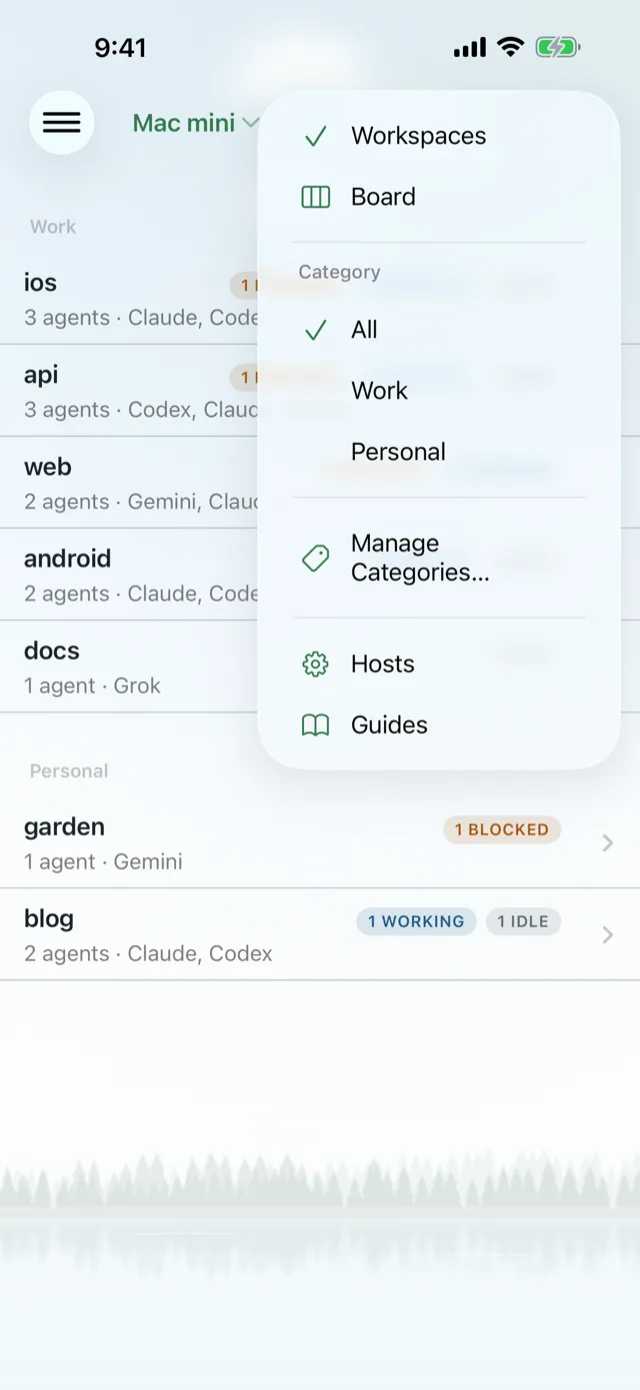
Pick a category from ⋯. 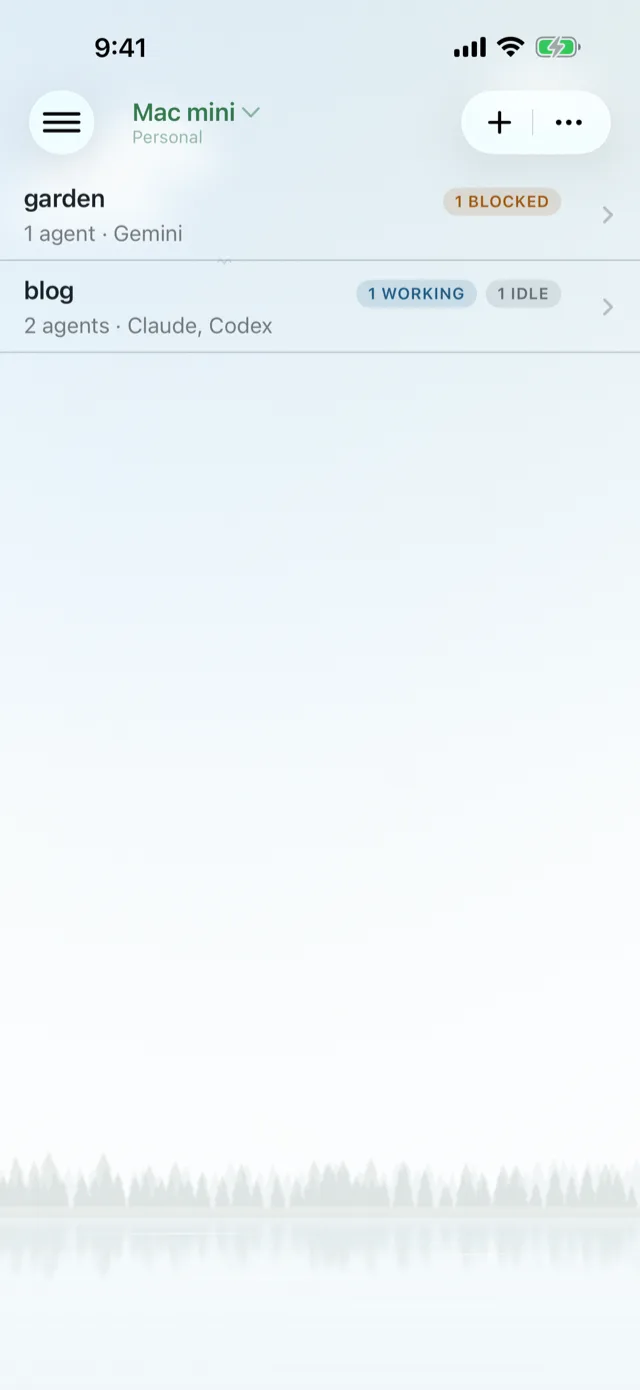
Filtered to Personal. -
Read the sectioned list
With All selected, the Workspaces list splits into one section per category, in your order, with Uncategorized last. Empty sections are left out. Inside each section, the workspaces that need you most still come first.
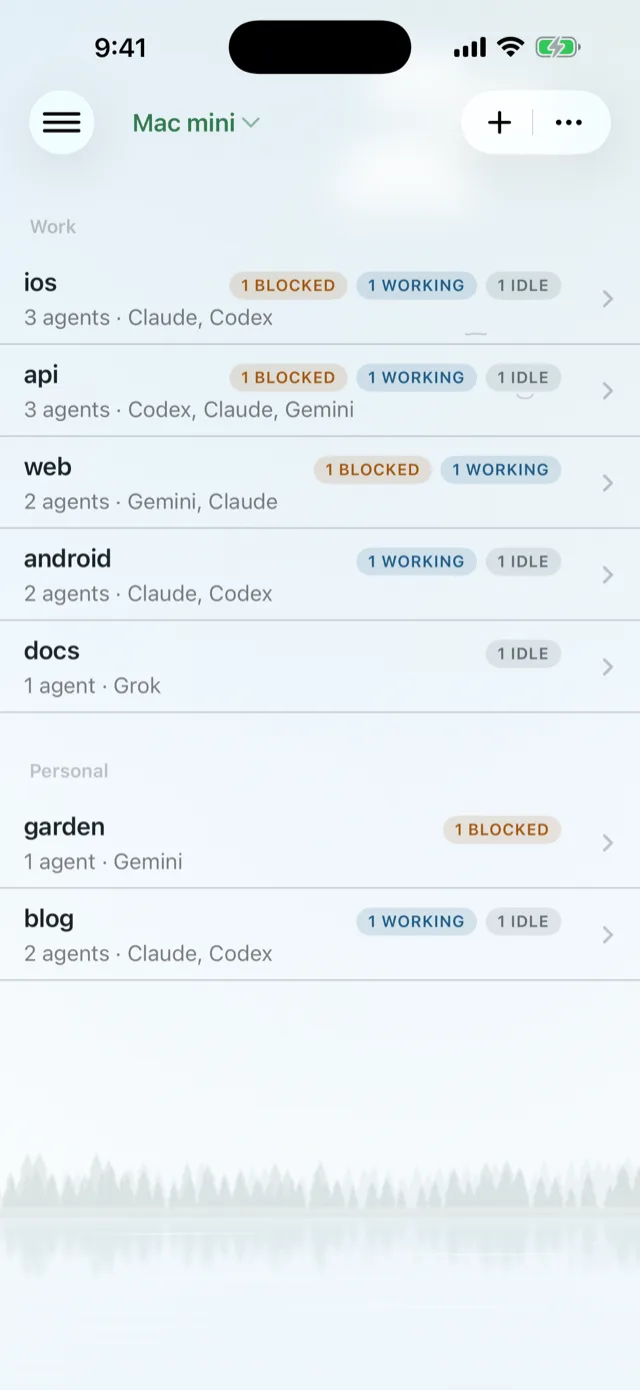
Sections under All.
Manage categories
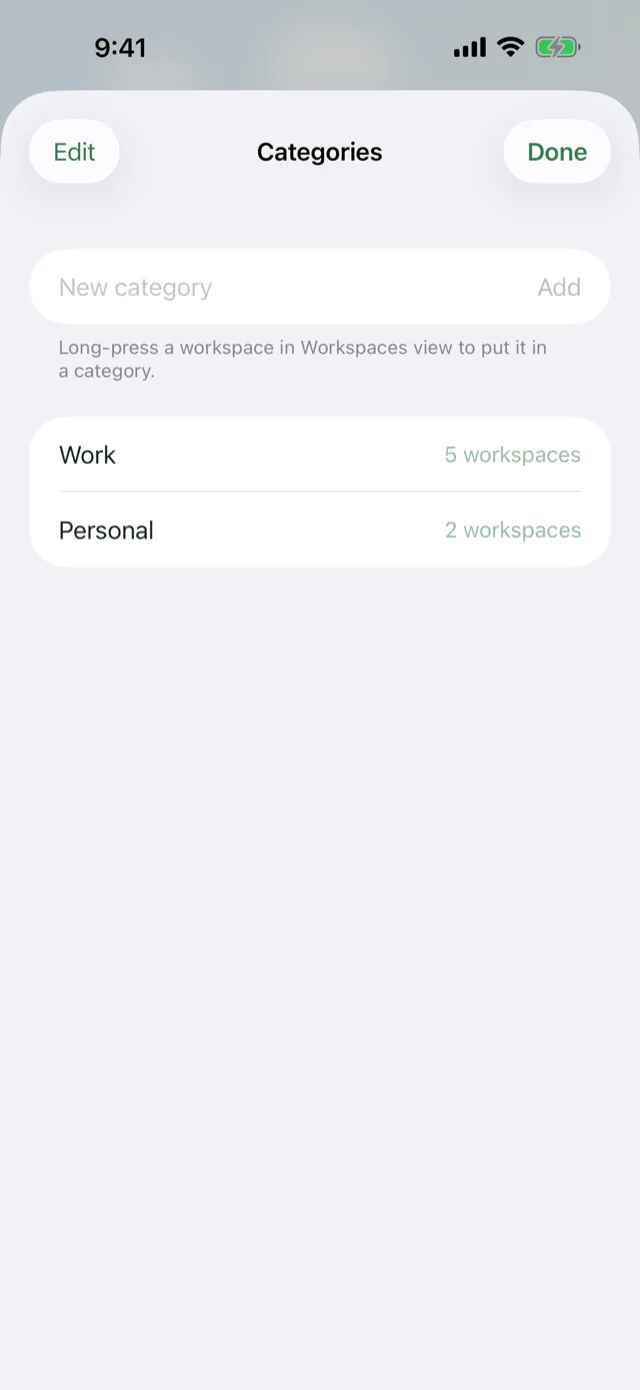
Open ⋯ > Manage Categories….
- Add a category by name at the top.
- Rename by tapping it. The workspaces in it stay put.
- Reorder with Edit. This order is the order of the ⋯ menu and of the Workspaces sections.
- Delete by swiping left. Lochan tells you how many workspaces will become uncategorized first. Deleting a category never closes a workspace.
What clears an assignment
- Closing a workspace from the phone drops it from its category.
- Deleting a host drops all of that host's assignments. The category names stay.
- Deleting a category makes its workspaces uncategorized on every host.
- A workspace closed on the desktop just stops showing up. A brief connection hiccup never wipes your assignments.
See also Get around the Herd and Customize the key bars.