
Customize the key bars
Put the keys you actually press where your thumb is, and add your own for the commands you send all day.
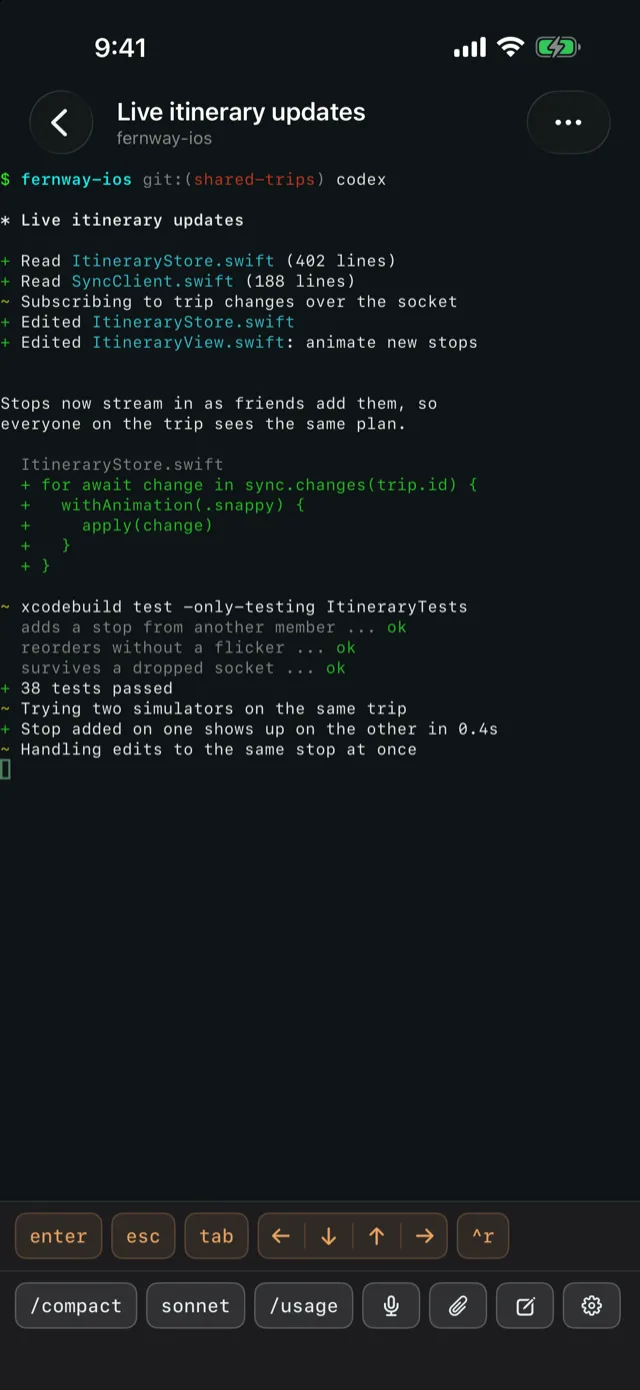
A phone keyboard has no Esc, no Ctrl, and no arrows. When you open a pane, Lochan adds two rows of soft keys under the terminal. They stay put whether the keyboard is up or down. Both rows are yours to arrange.
The two rows
- Top row (amber). The keys your thumb rests on. Out of the box it holds only Enter.
- Bottom row (plain). Everything else, ending with the gear that opens the settings.
Any key can live on either row, but only on one at a time. The colour is how you tell the rows apart, since they hold the same kinds of keys.
The built-in keys
- Clear sends
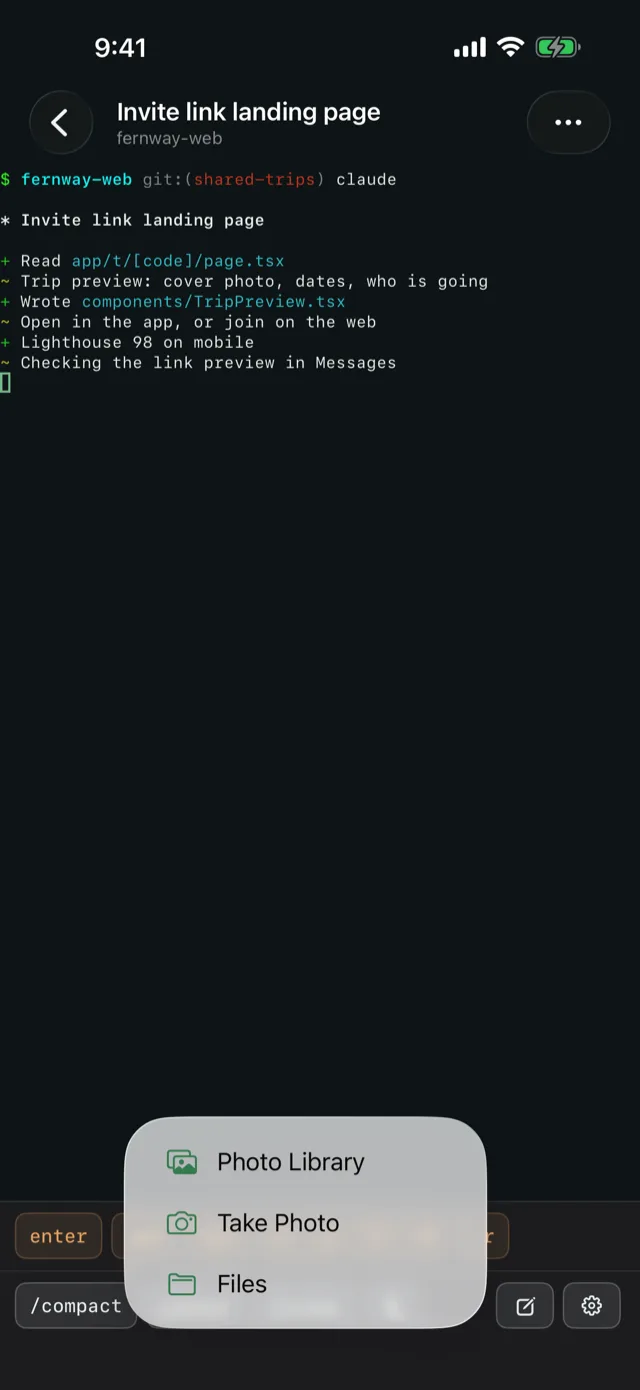
/clearto the agent, which starts a fresh session. - Attach sends a photo, a new camera shot, or a file to the host and types its path into the pane, ready for you to add a question. Nothing is sent to the agent until you press Enter.
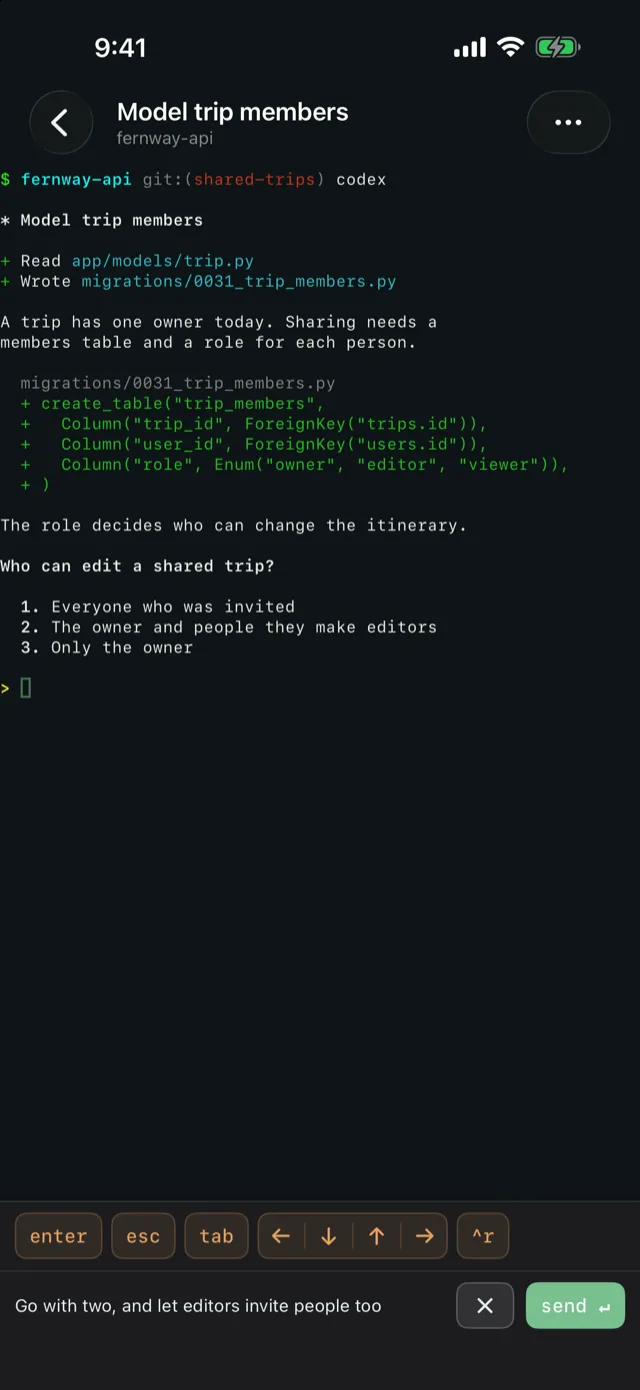
- Mic dictates. Speak, stop, then review the words before send ↵. Cancel throws them away.
- Write opens a full text editor with autocorrect and the normal keyboard, for anything longer than a line. Swiping it away keeps your draft for next time.
- Phone rules reminds the agent it is talking to a phone: short answers, no
localhostlinks, no "run this and paste the output". Lochan already sends this with your first message to a pane. Press it after you restart the agent in that pane. - Esc, Tab, Enter, Ctrl+C and Ctrl+B send those keys.
- Ctrl holds Control down for the next key you type.
- Arrow cluster is all four arrows in one key, like a D-pad.
Arrange the rows
-
Open Key Bars
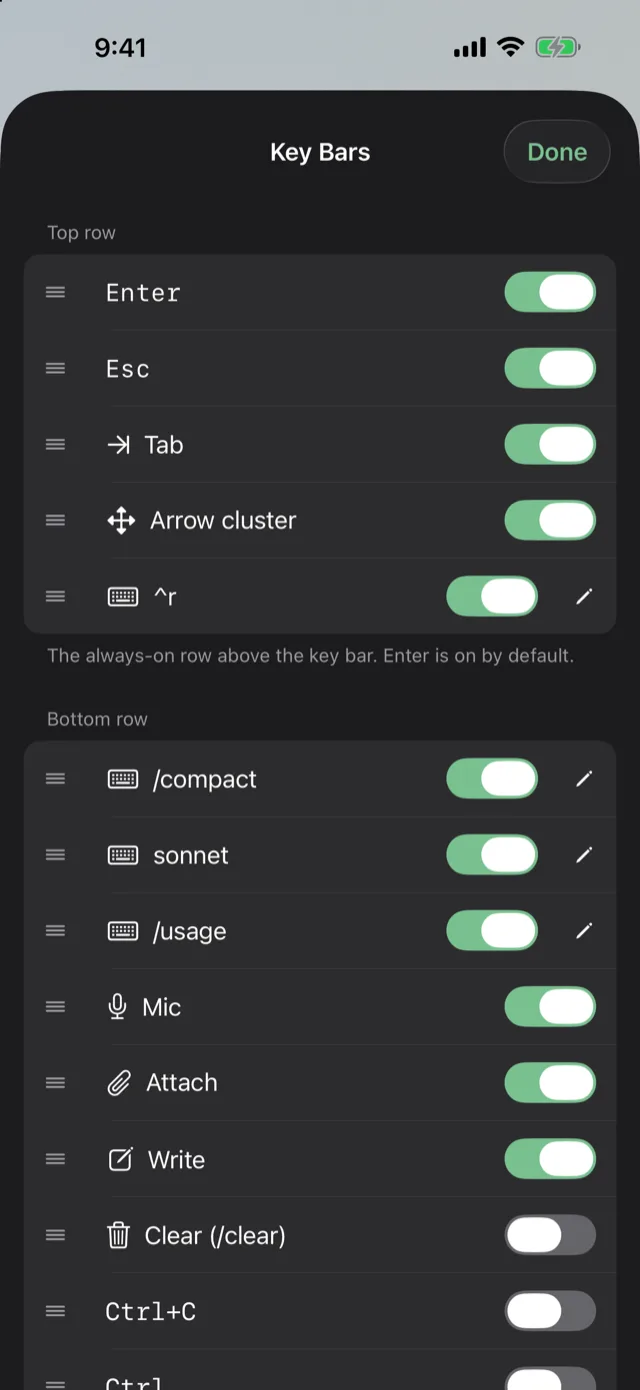
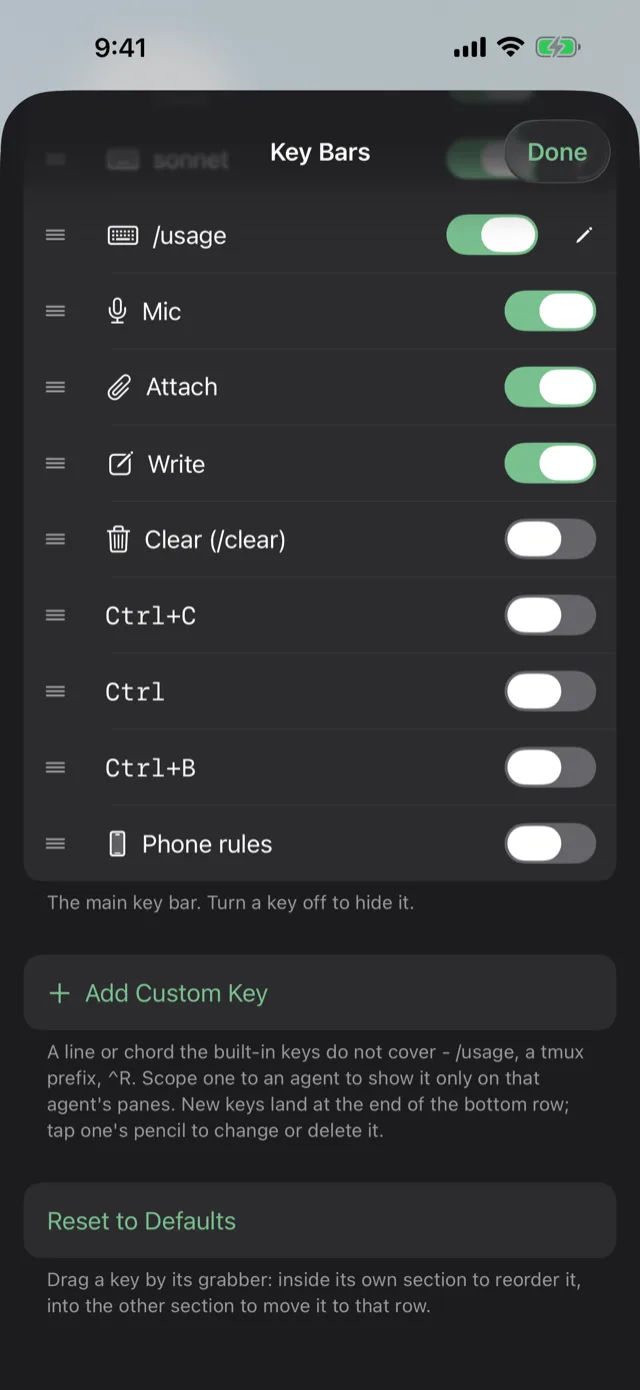
In any pane, scroll the bottom row to its end and tap the gear. The Key Bars sheet lists the top row, then the bottom row.
-
Turn keys on or off
Use the switch next to a key. A key that is off keeps its place, so turning it back on puts it where it was.
-
Reorder and move keys
Press a key's grabber and drag. Inside its own row it reorders. Drag it into the other row to move it there. The list rearranges live under your finger. To put a key back on a row you emptied, drop it in the space under that row.
Reset to Defaults restores the factory rows: Enter on top, everything else below. Your custom keys are kept and go to the end of the bottom row.
Add your own keys
Tap Add Custom Key in the Key Bars sheet. A custom key sends one of two things.
-
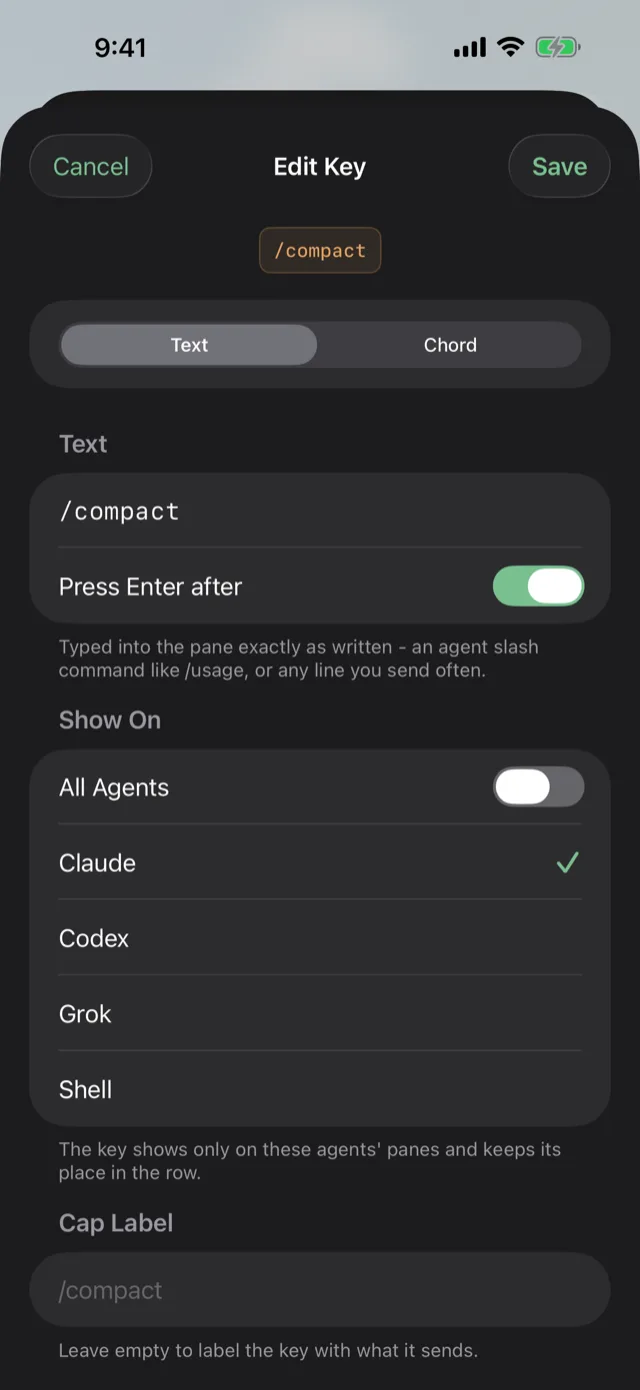
Text. A line typed into the pane exactly as written. This is the one for an agent's own slash commands, like
/usage,/compactor/model sonnet, or any line you send often. Press Enter after is on by default. Turn it off and the key only types the start of a prompt, so you can finish it yourself. -
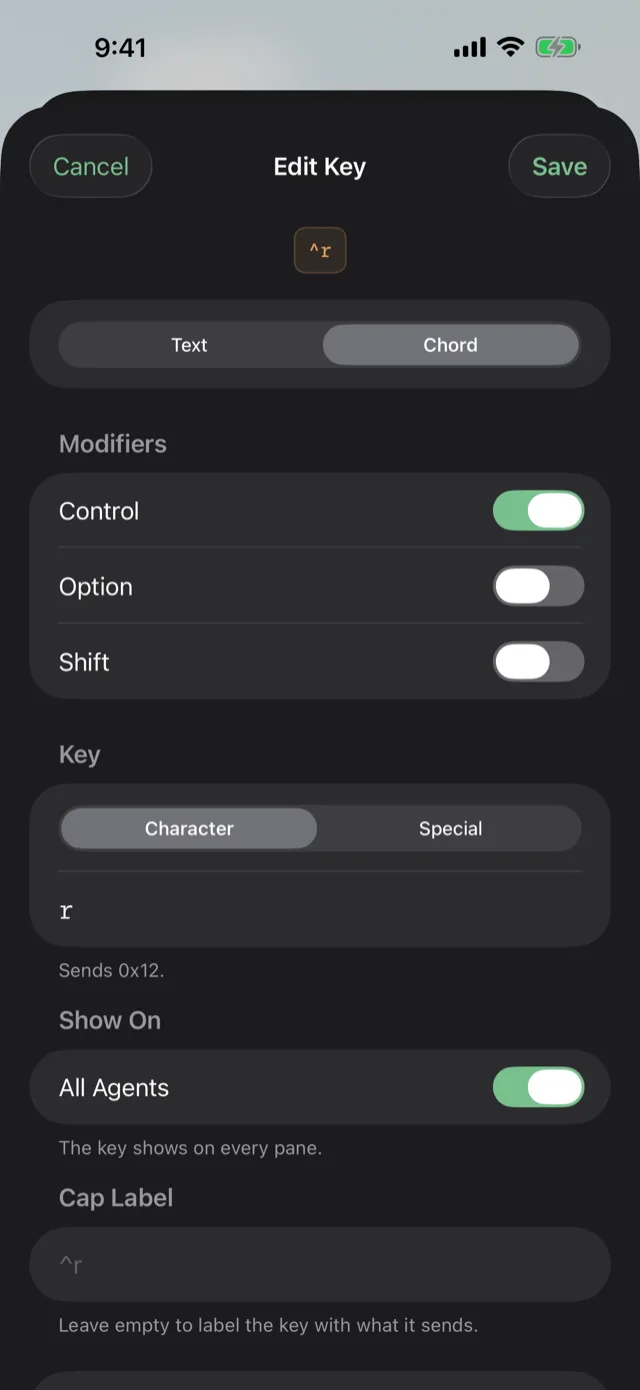
Chord. A key pressed with modifiers. Pick any of Control, Option and Shift, then a character or a special key: Esc, Tab, Enter, Space, Backspace, Delete, an arrow, Home, End, Page Up or Page Down. Think a tmux prefix,
^Rfor history search, or⌥←to jump a word. The editor shows the exact bytes the chord sends, so you can check it before you rely on it.
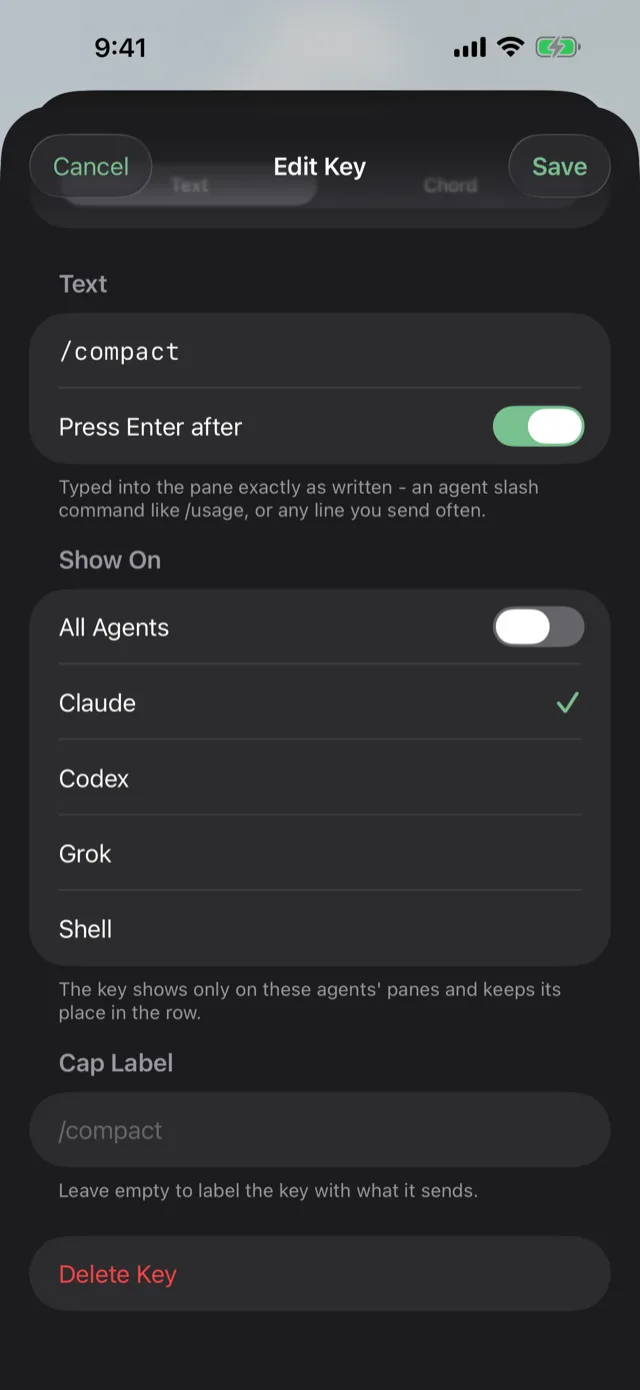
A key is labelled with what it sends unless you give it a Cap Label. New keys land at the end of the bottom row. From there they behave like any built-in key: drag them, move them to the top row, or switch them off. Tap a custom key's pencil to change it or to Delete Key.
Keys for one agent only
Claude, Codex and the other agents each have their own commands. Under Show On, turn off All Agents and pick the agents the key is for. The list offers Claude, Codex, Grok and Shell, plus any other agent running on the host, and starts with the agent of the pane you came from.
Now /compact appears only on Claude panes and /status only on Codex panes. A hidden key still holds its slot, so moving between a Claude pane and a Codex pane never reshuffles the keys they share. The Key Bars sheet lists every key and names the agents a scoped key is for.
Where this is stored
Your rows and custom keys are saved on this phone and apply to every host. Nothing is written to the host.
See also Get around the Herd and Organize workspaces with categories.