
Get around the Herd
Two ways to see your agents, the Shepherd to ask about them, and the pane where you answer them.
The Herd is Lochan's view of one Herdr host. Open Herdr from the sidebar. If you have not paired a host yet, start with Pair Lochan with Herdr.
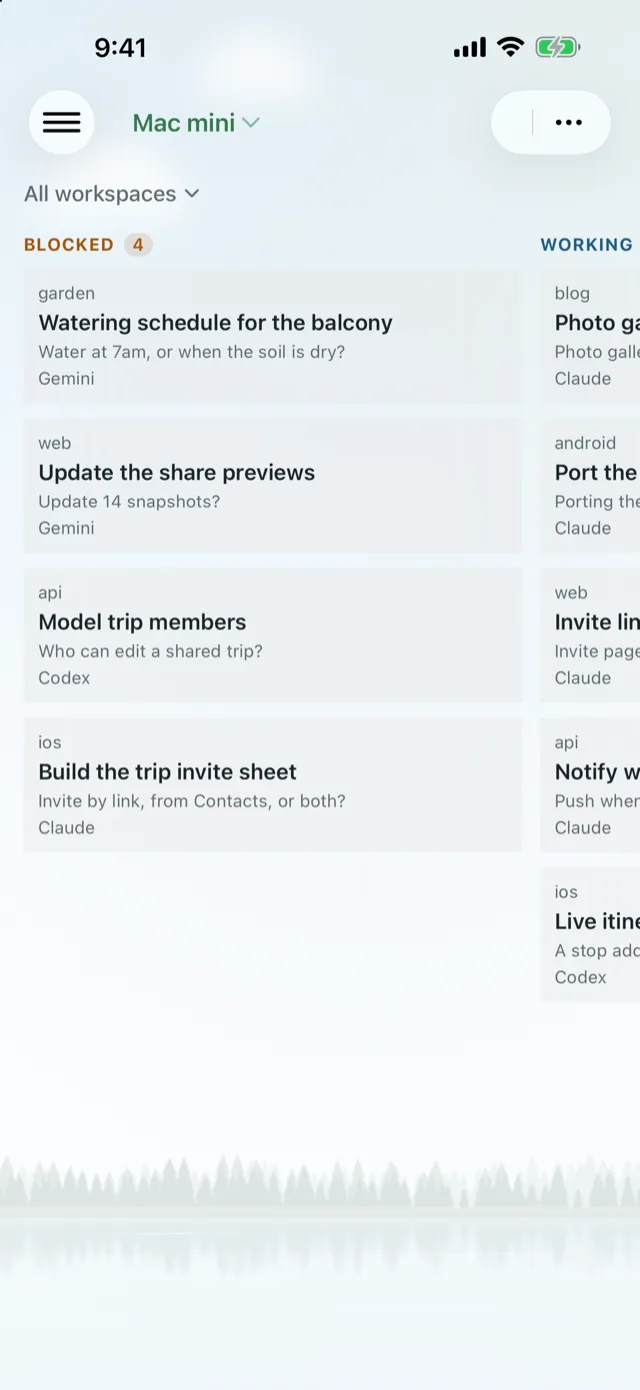
Every agent is in one of four states: blocked (waiting on you), working, done, or idle. Whichever view you use, blocked agents come first.
Hosts
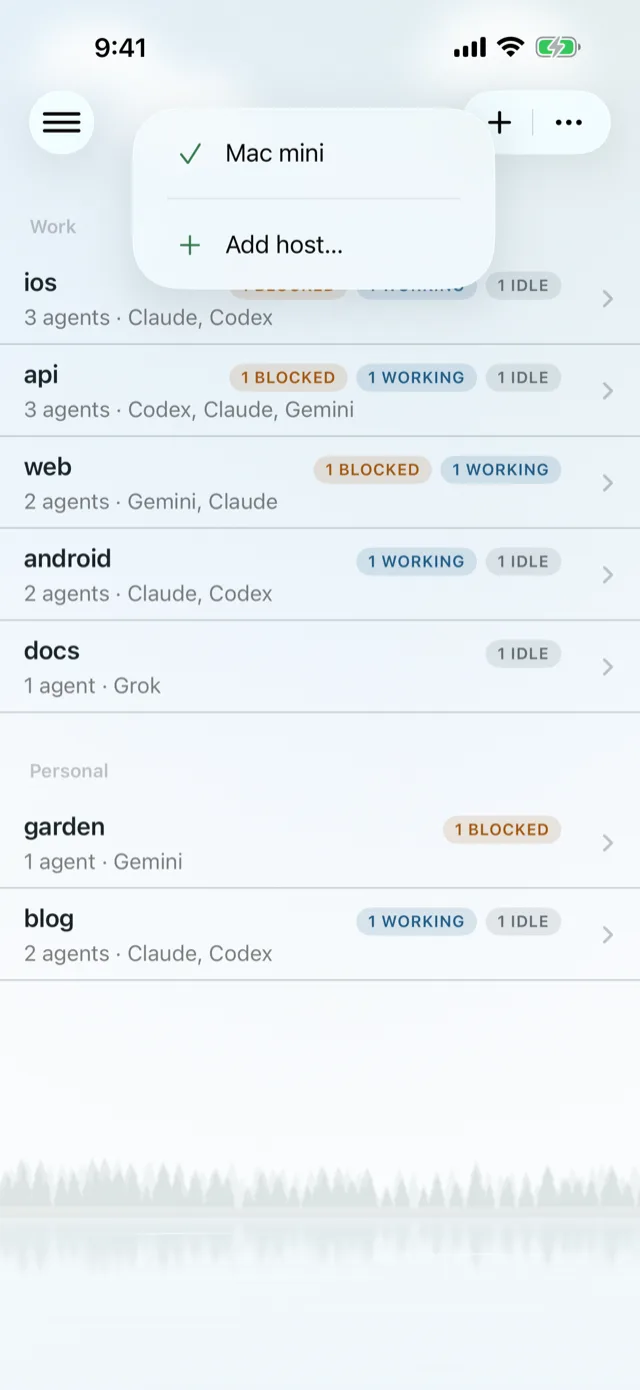
You can save several hosts, such as a laptop and a Mac mini, but only one is live at a time. Tap the host name at the top to switch hosts or add one. ⋯ > Hosts edits or deletes them.
Pick a view
The ⋯ menu switches between two views. Lochan remembers your choice.
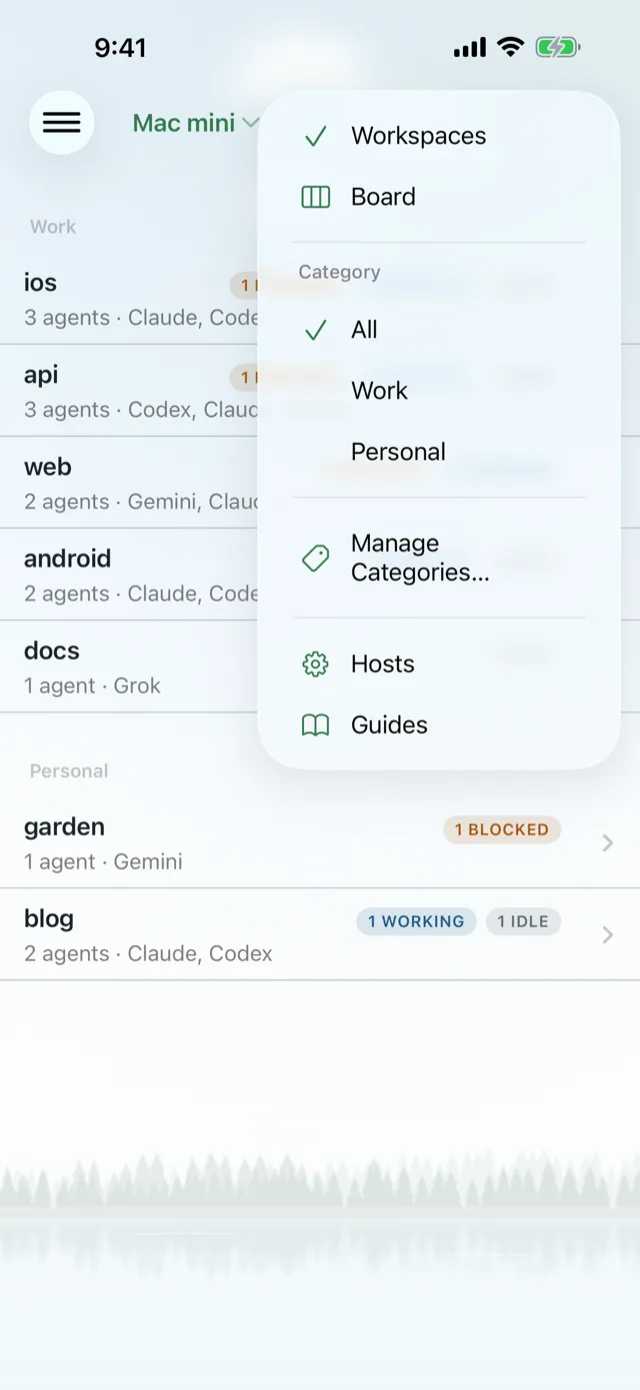
- Board. The default. Four columns, one per state, with the agents waiting on you in the first. Each card shows its task, its last useful line, and how long it has been in its state. Swipe between the columns.
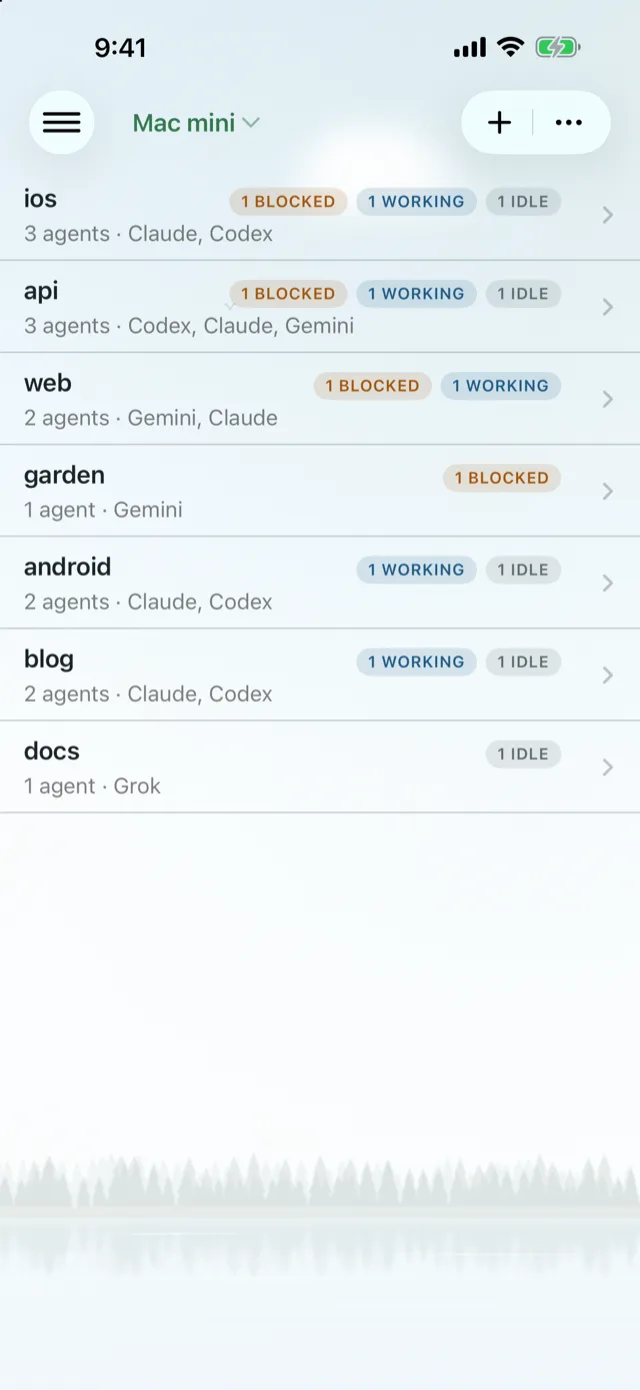
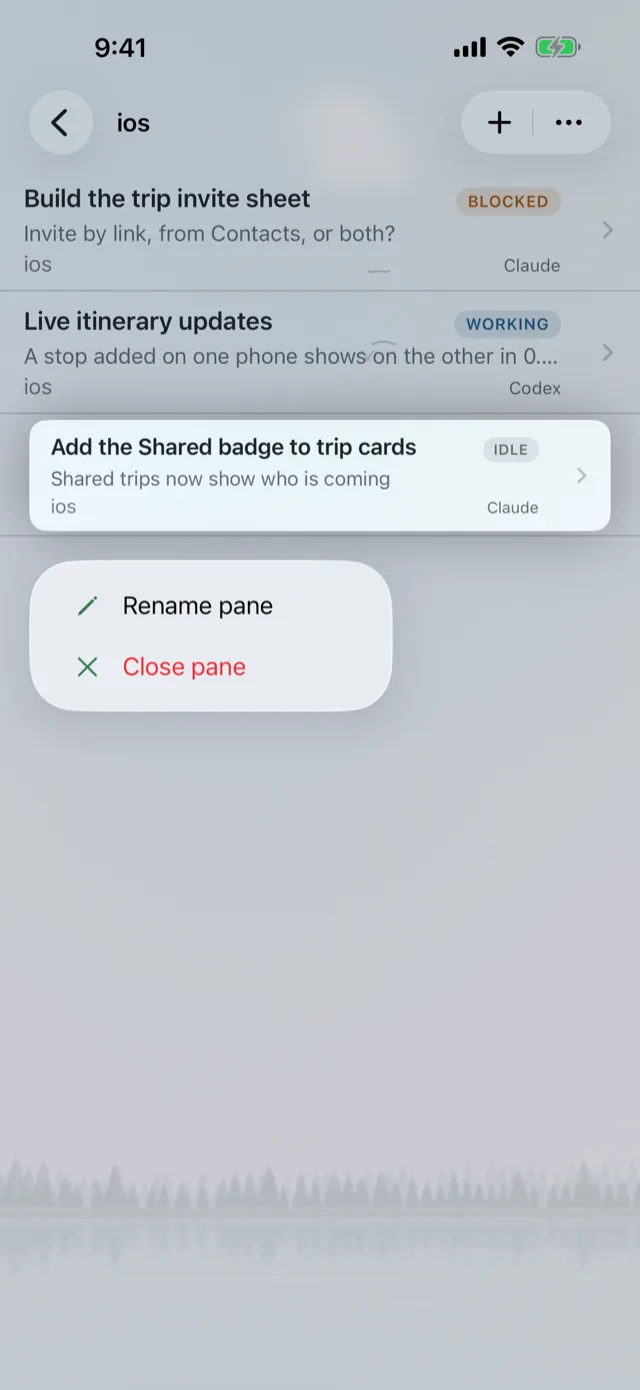
- Workspaces. One row per Herdr workspace, with counts like "2 BLOCKED". Tap a row to see its panes. Long-press to rename it, close it, or put it in a category. + makes a new workspace in your home folder and opens a shell in it.
Categories narrow both views to one group of workspaces. See Organize workspaces with categories.
Ask the Shepherd
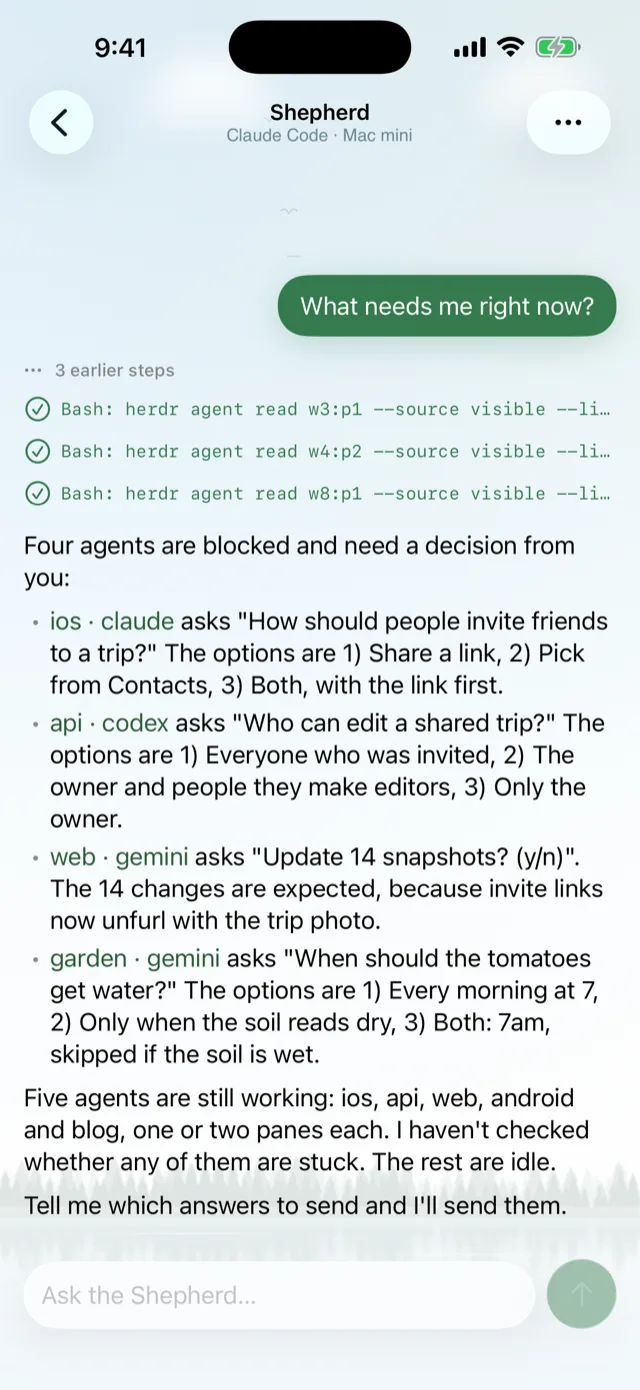
The bot icon next to ⋯ opens the Shepherd: a chat with one extra agent on your host that can read every other pane. Ask it "what needs me?" or "is anything stuck?" and it answers from what is really on those screens, with links that open the panes it mentions. The red badge on the icon counts blocked panes.
- The first time, pick which agent to run it with (Claude Code, Codex, Pi, OpenCode or Grok) and tap Start Shepherd. That agent must already be installed on the host.
- The Shepherd only reads. It never types into another pane. If its agent asks for permission to do something, you see the question in the chat.
- Its ⋯ menu starts a new conversation, switches agent, opens its terminal, restarts it, or stops it.
- It runs in its own Herdr workspace, which Lochan hides from your views. Its files live in
~/.lochan/shepherdon the host.
Work in a pane
Tap any agent to open its live terminal. It is the real pane on your host, sized to your phone while you are in it, and back to normal when you leave. Your desktop keeps it too.
- Type by tapping the terminal to raise the keyboard. Double-tap space for a period, as usual.
- Scroll by dragging up and down. You are scrolling the host's history, so a fling keeps going.
- Copy by holding on a word and dragging. Let go for Copy, Select All and Paste.
- Links open in Safari when you tap them.
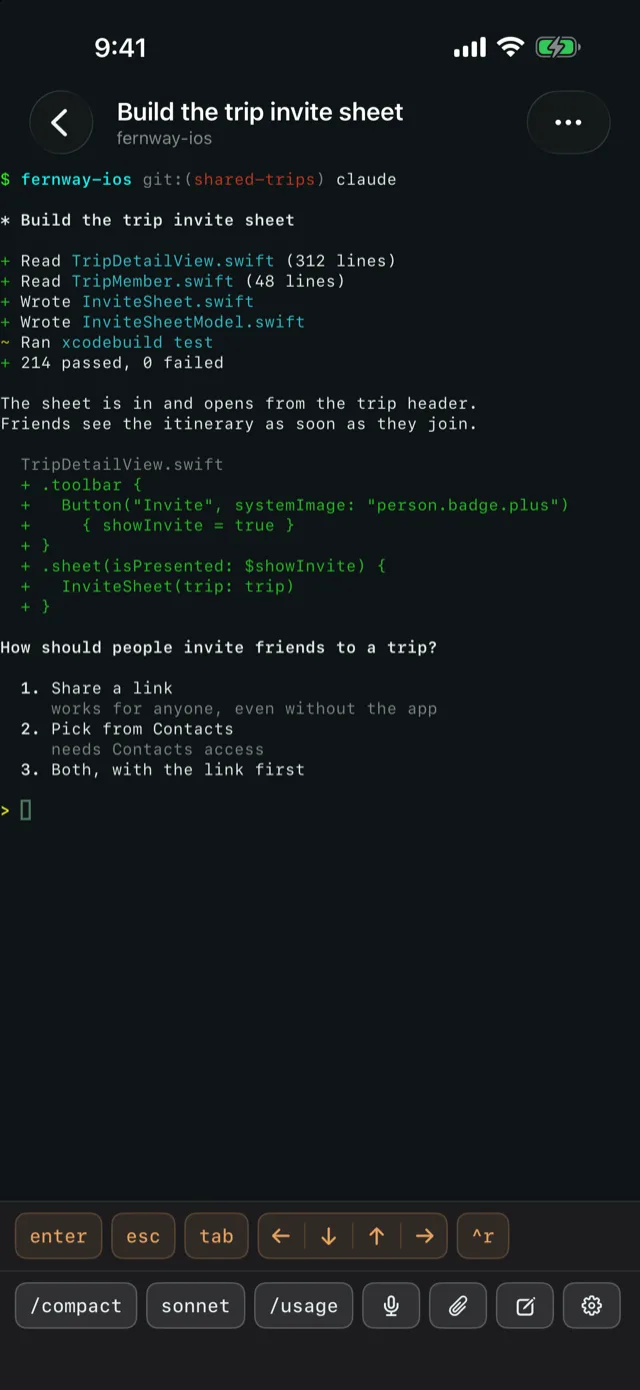
The two rows of keys under the terminal hold Esc, Ctrl, the arrows, dictation, attachments, a full-size editor and more. You can rearrange them and add your own. See Customize the key bars.
The first message you send to an agent also tells it you are on a phone. It then keeps answers short, gives you a question with choices instead of a wall of text, and does not hand you localhost links or ask you to run commands.
If the connection drops
Leave the app and come back, and Lochan reconnects and reopens the pane you were in. The same happens if you force-quit. If a pane loses its connection while you are looking at it, you see Reconnecting…, and Disconnected only if you need to act.